
How to Update Your Android Device Safely Without Losing Data?
Gusti Ayu Tita P
7 Agustus 2026
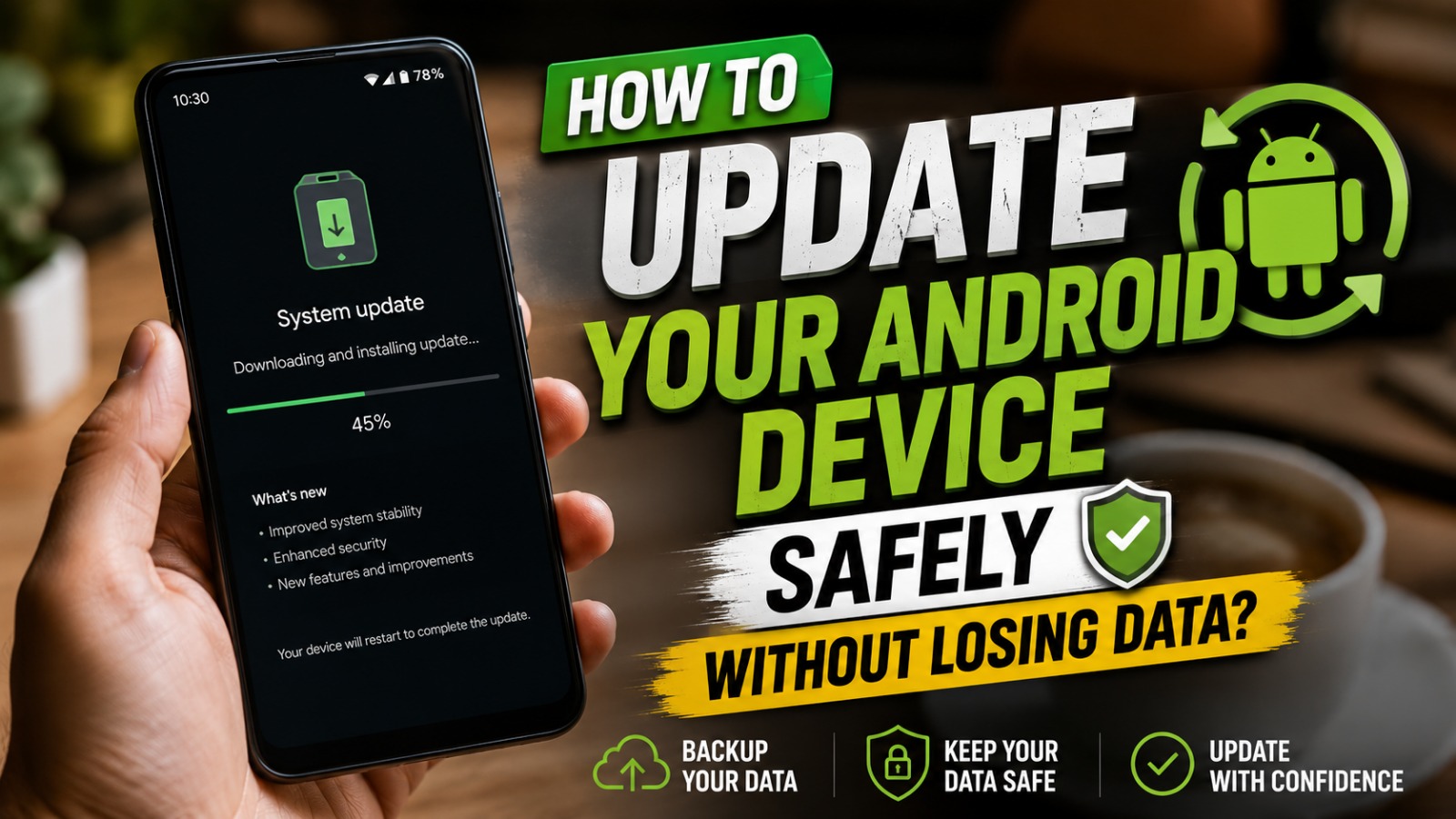
Keeping your Android smartphone updated is one of the best ways to improve its security, performance, and overall user experience. Software updates not only introduce new features but also fix bugs, improve battery efficiency, and protect your device against the latest cybersecurity threats. However, many users hesitate to install updates because they worry about losing important files or experiencing unexpected problems.
The good news is that updating an Android device is generally safe when done correctly. By following a few simple precautions, you can install the latest Android version without risking your photos, videos, contacts, documents, or other valuable data.
WHY REGULAR ANDROID UPDATES ARE IMPORTANT
Android updates provide much more than visual improvements. Every new update includes security patches, system optimizations, bug fixes, and compatibility enhancements that help your smartphone run more smoothly. Ignoring updates may leave your device vulnerable to malware and other security threats.
Manufacturers also release updates to improve battery management, camera performance, and application stability. Installing updates regularly ensures your smartphone remains reliable, efficient, and compatible with the latest apps and services. Android software updates, security improvements, and system optimization are essential for maintaining a healthy device.
BACK UP YOUR IMPORTANT DATA FIRST
Before starting any software update, create a complete backup of your important files. Although official Android updates rarely cause data loss, unexpected situations such as interrupted installations or hardware failures can occur. A recent backup provides peace of mind and allows you to restore your information if necessary.
Use your Google account to back up contacts, photos, application data, and settings automatically. You can also save important files to a computer, external storage device, or trusted cloud storage service. Android backup, cloud storage, and data protection should always be your first priority before updating.
MAKE SURE YOUR BATTERY IS SUFFICIENTLY CHARGED
Software updates can take several minutes to complete, depending on the size of the update and your device model. If your battery runs out during the installation process, the update may fail and could potentially cause software issues.
Charge your smartphone to at least 50%, although having 80% or more is recommended for additional safety. If possible, keep your device connected to its charger throughout the update. Battery preparation, safe Android updates, and stable power help ensure a successful installation.
CONNECT TO A STABLE WI-FI NETWORK
Android updates are often several hundred megabytes or even multiple gigabytes in size. Downloading these files over mobile data may be slower, more expensive, and more likely to experience interruptions. A stable Wi-Fi connection provides faster downloads and reduces the chance of corrupted update files.
Avoid switching networks or moving into areas with weak internet signals during the download process. Once the update begins installing, leave the device connected until the installation is complete. Wi-Fi connection, stable internet, and secure downloads contribute to a smoother update experience.
CHECK AVAILABLE STORAGE SPACE
Before downloading a software update, verify that your smartphone has enough free storage. Android requires temporary storage space to download, verify, and install update files. Insufficient storage may prevent the installation from starting or completing successfully.
If storage is limited, remove unnecessary applications, clear app cache, delete duplicate files, or move large photos and videos to cloud storage. Maintaining adequate free space improves both update reliability and everyday device performance. Storage management, Android cleanup, and available storage are important preparation steps.
DOWNLOAD ONLY OFFICIAL SOFTWARE UPDATES
Always install updates provided directly by your smartphone manufacturer or through the official Android system update menu. Avoid downloading operating system files from unknown websites because they may contain modified or malicious software that could compromise your device.
To check for updates, open Settings, navigate to System, and select Software Update or System Update, depending on your device. Official updates are tested for compatibility with your smartphone model, making them the safest option. Official Android updates, trusted software, and device compatibility help protect your smartphone.
DO NOT INTERRUPT THE UPDATE PROCESS
Once the installation begins, avoid pressing buttons, restarting the phone, or removing the battery if your device has a removable battery. Interrupting the installation process may cause software corruption or require additional recovery procedures.
Allow the smartphone to complete every stage of the installation automatically. Most Android updates finish within several minutes, although larger updates may take longer. Patience during the update process helps ensure successful installation and prevents unnecessary complications.
VERIFY YOUR DEVICE AFTER THE UPDATE
After your smartphone restarts, spend a few minutes checking that everything functions correctly. Confirm that your contacts, photos, applications, and documents remain available. Open several frequently used apps to ensure they work properly with the new software version.
You should also review battery performance, Wi-Fi connectivity, Bluetooth, and notification settings after major updates. Occasionally, certain preferences may return to default settings, so verifying them helps maintain your preferred user experience. Post-update checks, Android performance, and system verification ensure your device is working as expected.
KEEP YOUR APPS UPDATED AS WELL
Updating the Android operating system is only part of maintaining a secure smartphone. Installed applications also receive regular updates that improve compatibility with the latest Android version while fixing security vulnerabilities and software bugs.
Enable automatic app updates through the Google Play Store or check manually for updates regularly. Keeping both the operating system and applications updated provides the best combination of security, performance, and reliability. App updates, Google Play Store, and Android compatibility are essential for long-term device health.
CONCLUSION
Updating your Android device safely is a simple process when you take the proper precautions. Backing up your important data, charging your battery, connecting to a stable Wi-Fi network, ensuring sufficient storage, and installing only official updates greatly reduce the risk of problems during installation.
Regular Android updates provide stronger security, improved performance, better battery optimization, and access to new features. By following these best practices, you can confidently keep your smartphone up to date while protecting your valuable data and enjoying the latest Android innovations.
Tentang Penulis
Gusti Ayu Tita P
Penulis — Universitas STEKOM
Penulis aktif yang berfokus pada isu-isu akademik, teknologi pendidikan, dan pengembangan sumber daya manusia di lingkungan kampus.