
Tips to Save iPhone Battery for Daily Use
Gusti Ayu Tita P
3 Agustus 2026
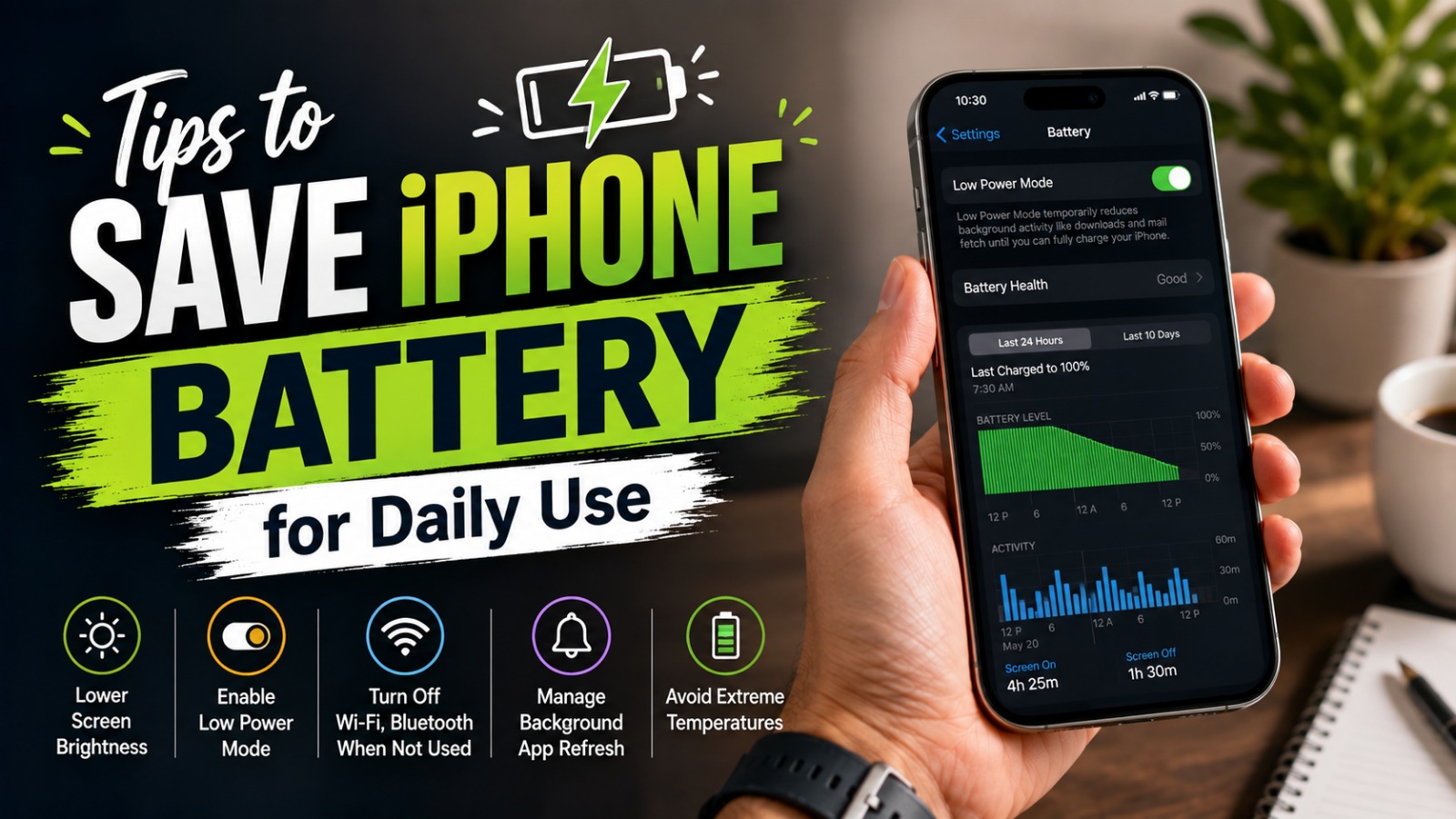
An iPhone battery can drain quickly when the device is used throughout the day for social media, video streaming, gaming, navigation, and communication. Although battery capacity naturally decreases over time, simple daily habits can help your iPhone last longer between charges. Knowing how to manage settings, apps, screen brightness, and charging habits can make a noticeable difference.
Saving battery does not mean turning off every useful feature on your iPhone. Instead, it is about using power more efficiently while keeping the features you need available. Here are practical tips to help extend iPhone battery life for everyday use.
LOWER SCREEN BRIGHTNESS
The display is one of the biggest sources of power consumption on a smartphone. Using very high brightness for long periods can cause the battery to drain faster, especially when you frequently browse websites, watch videos, or use social media. Lowering the brightness to a comfortable level can reduce unnecessary power consumption. You can adjust brightness through Control Center or the Display & Brightness settings.
Using Auto-Brightness can also help because the iPhone automatically adjusts the screen according to surrounding light. This prevents the display from staying brighter than necessary. You do not need an extremely dim screen, as brightness should still be comfortable for your eyes. Finding a balanced brightness level is a simple way to save battery during daily use.
TURN ON LOW POWER MODE WHEN NEEDED
Low Power Mode is a useful feature when your iPhone battery is running low or when you need it to last longer. It reduces or limits certain background activities, including automatic downloads, some visual effects, email fetching, and background app refresh. This helps the iPhone use less energy without requiring you to shut down the device. You can activate it from Settings or Control Center.
Low Power Mode is especially helpful when you are away from a charger for several hours. It can also be useful during travel, outdoor activities, or busy days when charging is difficult. However, some functions may work differently while the feature is active. Once the iPhone is sufficiently charged, you can turn it off if you want normal background activity to resume.
CHECK WHICH APPS USE THE MOST BATTERY
Some apps consume significantly more battery than others, particularly those that frequently use the display, camera, GPS, mobile data, or background activity. iPhone provides battery usage information that helps you identify which apps are using the most power. You can check this through Settings and Battery. Reviewing this information regularly can reveal apps that may be draining your battery more than expected.
If an app consistently consumes a large amount of power, consider reducing how often you use it or checking its settings. You can also limit unnecessary background activity for certain apps. There is no need to delete every battery-intensive application, especially if you rely on it. The goal is to understand your usage and make practical adjustments.
LIMIT BACKGROUND APP REFRESH
Background App Refresh allows compatible apps to update content even when you are not actively using them. While convenient, frequent background activity can contribute to battery consumption. You can control this feature through Settings and General and then Background App Refresh. Consider disabling it for apps that do not need to update constantly.
You do not necessarily have to turn the feature off for every application. Keeping it enabled for important apps while limiting it for less useful ones can provide a good balance. This approach allows essential content to stay updated without giving every app permission to work in the background. Managing background activity can be especially useful if you use many applications every day.
MANAGE LOCATION SERVICES
Location Services allow apps to use your iPhone location for navigation, weather, delivery, maps, and other useful features. However, continuous location access can consume additional power, particularly when apps frequently request your location in the background. You can review location permissions through Settings and Privacy & Security and then Location Services. Choose the access level that makes sense for each app.
For apps that do not need constant location information, consider selecting an option that limits access or prevents unnecessary background location use. Some apps may only need your location while you are actively using them. You should keep location access enabled for services where accurate positioning is important. Managing these permissions can reduce unnecessary battery activity without removing useful location features.
USE WI-FI WHEN AVAILABLE
Using Wi-Fi can often be more efficient than relying on mobile data, especially when the cellular signal is weak. When an iPhone struggles to maintain a cellular connection, it may use more power while searching for or maintaining a signal. Connecting to a reliable Wi-Fi network can therefore help reduce battery consumption in many everyday situations. This is particularly useful when you spend long periods at home, school, or work.
However, you should not keep searching for unreliable networks just to avoid mobile data. A stable and trusted Wi-Fi connection is the better choice. When you know you will be somewhere without a useful connection, you can manage connectivity settings based on your needs. Efficient network use can help your battery last longer throughout the day.
REDUCE UNNECESSARY NOTIFICATIONS
Every notification can cause the iPhone to perform additional activity, and frequent alerts may also wake the screen. If you receive notifications from many apps, this repeated activity can contribute to battery use. Review your notification settings and disable alerts that are not important. Keeping only useful notifications can make your iPhone less distracting as well.
You can manage notifications through Settings and Notifications. Important communication apps can remain enabled while promotional or low-priority alerts can be reduced. This does not only help battery efficiency but also makes it easier to focus on important messages. A cleaner notification system is a practical improvement for everyday iPhone use.
AVOID EXTREME TEMPERATURES
Temperature has an important effect on lithium-ion batteries. Apple advises avoiding using or charging an iPhone in very hot or very cold conditions because extreme temperatures can affect battery performance. High temperatures are particularly important to avoid because excessive heat can contribute to permanent battery capacity reduction over time. Do not leave your iPhone exposed to direct sunlight or inside a hot vehicle for extended periods.
If the device becomes unusually hot, move it to a cooler environment and allow it to return to a normal temperature. Avoid placing a hot iPhone in a refrigerator or freezer because sudden temperature changes can cause other problems. Keeping the device within a comfortable operating environment is better for long-term battery health. Temperature management is therefore just as important as changing software settings.
KEEP IOS AND APPS UPDATED
Software updates can include bug fixes, security improvements, and performance optimizations. Keeping iOS and apps updated can help ensure that your iPhone operates efficiently. Some updates may also address problems that cause unusual battery consumption. You can check for available iOS updates through Settings and General and then Software Update.
App developers also release updates that improve compatibility and performance. If an application behaves unusually and uses excessive battery, updating it may help. However, battery usage can temporarily change after a major iOS update while the device completes background processes. For this reason, it is better to evaluate battery performance over time rather than judging it immediately after an update.
USE OPTIMIZED BATTERY CHARGING
Optimized Battery Charging is designed to reduce the time your iPhone spends fully charged under certain charging patterns. The feature can learn your charging routine and delay charging beyond 80 percent until closer to when you normally need the phone. This can help reduce battery aging associated with remaining fully charged for long periods. You can manage the feature through the Battery settings.
You should also use appropriate charging accessories and avoid charging the iPhone in excessively hot environments. Modern iPhones are designed to manage charging automatically, so you do not need to repeatedly unplug and reconnect the device to maintain a specific percentage. Battery health naturally declines with age and usage. Good charging habits can help you get reliable performance from the battery for a longer period.
REDUCE UNNECESSARY POWER CONSUMPTION
Features such as high refresh rates, demanding games, video recording, streaming, and constant GPS use can consume significant power. You do not need to avoid these features completely, but reducing unnecessary use can extend daily battery life. For example, downloading content over Wi-Fi before traveling may reduce the need for continuous streaming. Similarly, lowering display brightness during long sessions can reduce energy use.
You can also avoid leaving demanding apps running when you no longer need them. However, there is no need to force-close every app constantly, as iOS manages apps and memory automatically. Focus on apps that genuinely require significant resources rather than repeatedly closing everything. Smart usage is generally more effective than trying to control every small activity on the device.
MONITOR BATTERY HEALTH
Checking Battery Health can help you understand the condition of your iPhone battery. On supported iPhone models, you can find battery health information through Settings and Battery and then Battery Health or Battery Health & Charging. The information can indicate whether the battery is operating normally and provide details about maximum capacity. A lower maximum capacity means the battery may not hold as much charge as when it was new.
Battery health naturally decreases as the battery experiences charge cycles and aging. If the battery becomes significantly degraded and daily usage is affected, a battery replacement may be worth considering through an authorized service provider. Changing settings cannot restore lost battery capacity. Monitoring battery health helps you determine whether the problem is caused by usage habits or an aging battery.
CONCLUSION
Saving iPhone battery for daily use does not require complicated changes. Simple actions such as lowering screen brightness, limiting unnecessary background activity, managing location access, reducing notifications, and using Low Power Mode when needed can make a meaningful difference. Keeping iOS updated and protecting the iPhone from extreme temperatures can also support reliable battery performance over time.
The most effective approach is to understand your own usage habits and identify what consumes the most power. You do not need to disable every feature because convenience and battery efficiency should remain balanced. With consistent daily habits and proper charging practices, you can make better use of your iPhone battery and reduce the need for frequent charging.
Tentang Penulis
Gusti Ayu Tita P
Penulis — Universitas STEKOM
Penulis aktif yang berfokus pada isu-isu akademik, teknologi pendidikan, dan pengembangan sumber daya manusia di lingkungan kampus.